Boilsoft Audio Recorder for Mac Tutorial
Record from Applications Tutorial
How to record audio from applications with our Boilsoft audio recorder for Mac? Here is a step-by-step tutorial .
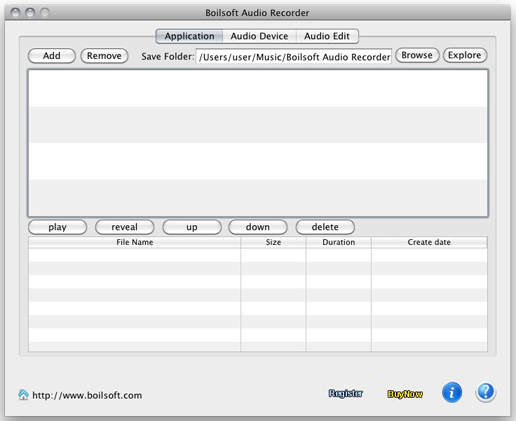
1. Download and install audio recorder for Mac. Launch it, and the main interface will pop up as below.
2.
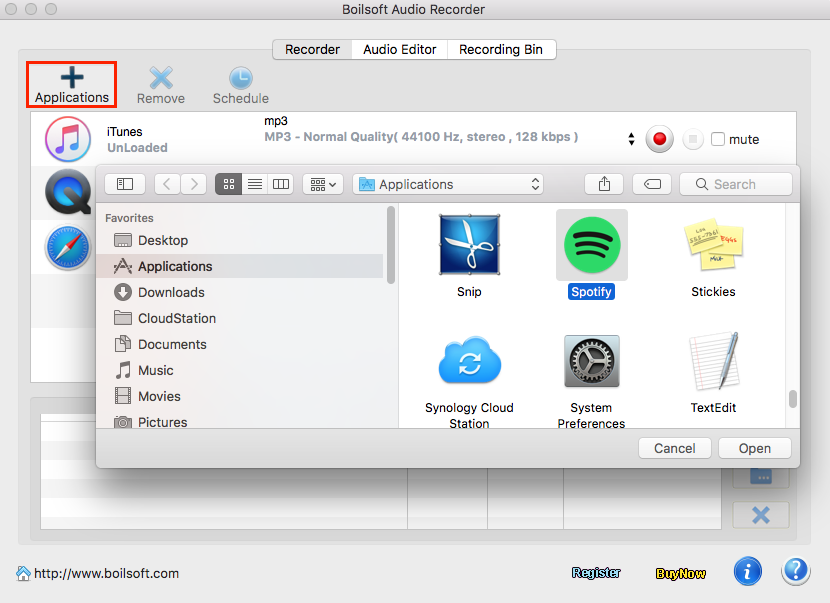
Click on "Add" button
 to import an application (like Skype, QuickTime Player, RealPlayer, iTunes, VLC, or DVD Player, Safari). The max value for recording is 4.
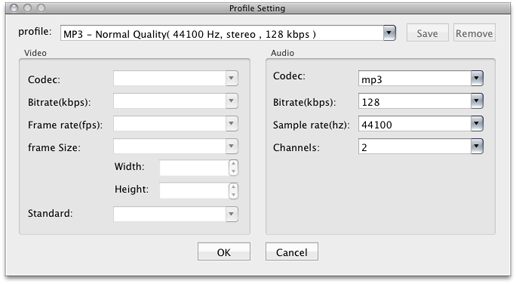
Tips: If you need audio files of special parameters, you can adjust profile settings including codec, bit rate, sample rate and channels on the "Advance" panel by clicking on
 .
.
3.
Now choose output audio format and save folder, then click on " Start"
 or "Load"
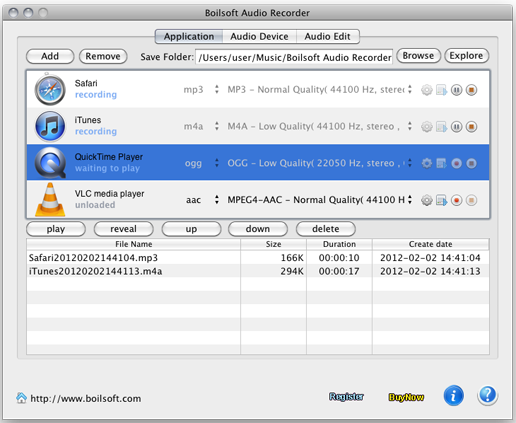
 button to load application and play audio or video file that you want to record sound from. Then our audio recorder for Mac will start to record sound automatically.
4.
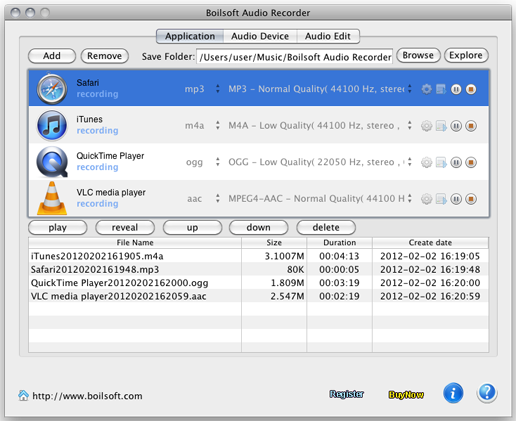
Batch recording allow you to record sound from four applications at the same time. To pause or stop recording use the Pause or Stop buttons accordingly. In addition, you can move up or move down one audio file by pressing "Up"
 or "Down"
 button.
5.
When the recording is done,you can find your generated audio files by clicking on
 and play them with an audio player on Mac to press "play" button.
Record from devices tutorial
*Our sale pricing is intended for individual purchases, and only available for a limited time. Boilsoft Systems International Inc. reserves the right to limit order quantities.
Copyright © 2018 Boilsoft Systems International Inc. All rights reserved.
Protected by the copyright laws of the China and by international treaties.