Boilsoft Video Converter Tutorial
Video Converter, all-in-one video converter, convert all popular video formats.
Step by Step Tutorial
There're mainly four steps to convert a video.
Step 1: Add File to video converter:
Press button
 to add source file to converter or drag the file to the video converter window.
Press button
 or use the preview player to preview file before it gets converted.
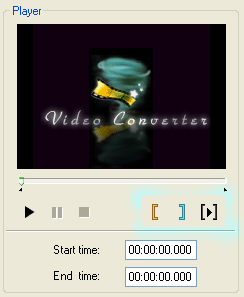
If you only need to convert a clip of the video file, you can select it as you wish with our mini video cutter which is attached with the preview player.
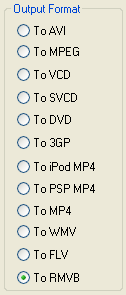
Step 2: Set Output Format before video gets converted:
Choose the target file format for video converting from the list ( including
RM, RMVB
, AVI, MPEG, VCD, SVCD, DVD, 3GP, iPod Mp4, PSP MP4 and MP4, FLV format. ).
Step 3: Set Output file settings for converting:
a. Set converting target file folder here:

Press the play button to play the output video file after one conversion.
Press button
 to check on the converted video's output folder.
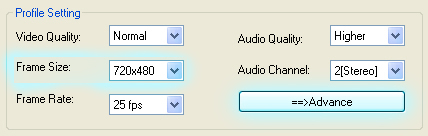
b. Set detail video/ audio settings to prepare for convert: You can choose a covnersion profile template or define your own output file format settings including Frame Size, video/audio quality, etc..
Press the Advance button to customize more settings.

Step 4: Press Convert Button
 to start conversion.
Edit: Edit your video file.
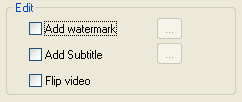
* You can add watermark, subtitle to your video file, even flip the output video image vertically.
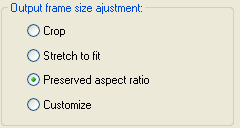
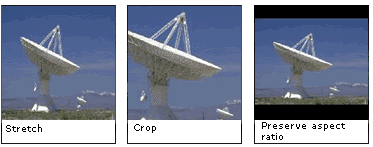
With it, you can define how video converter perform the output video image when the ouput Frame Size is different form the source video.
* How to use Frame Size Adjustment Controller?
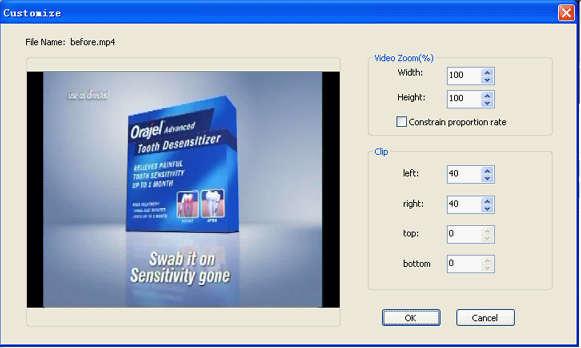
You can define the video size by Video Zoom options and set margin to border by Clip options. Padding left, right, top and bottom all can be set.