Boilsoft Video Converter FAQ
Convert to AVI, Convet to Flash, Convert to MPEG, Convert to MP4
How to add watermark & subtitle?
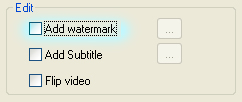
Q: How to add a watermark to my video?
A:
Check the
Add watermark
option.
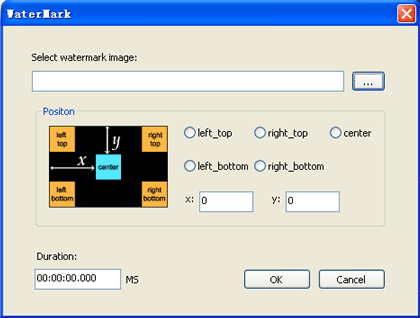
Once you check on Add watermark , the Watermark setting window will be displayed as follow. You can choose a image as the watermark from your favorites, and set the position, duration as you like. ( Animated GIF file is supported.)
Q: How to add subtitle to my video with Boilsoft Video Converter?
A: Check the Add subtitl e option.

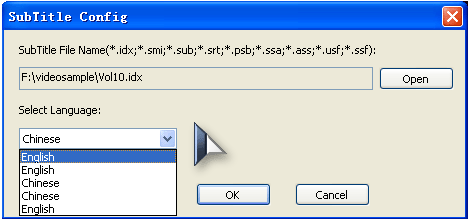
Once you check the box of Subtitle, the Subtitle config window will show up. Now you can add a subtitle file from your computer.
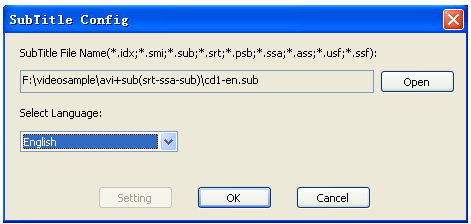
1. If the subtitle file you added is .sub file or .idx file, in other words, a graphic subtitle file. You can't render the subtitle with the Subtitle Text Style Editor.
But you can select the language of the subtitle.
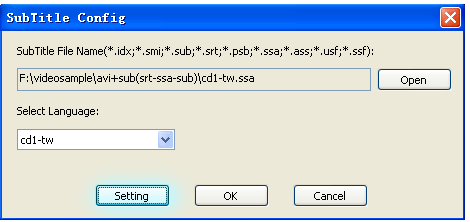
2. If the subtitle file you added is .ssa file, .srt file, namely, a text format subtitle file, then you can press the Setting button to setup the Subtitle Text Style Editor to render your subtitle.
How to use Boilsoft Video Converter's Subtitle Text Style Editor?
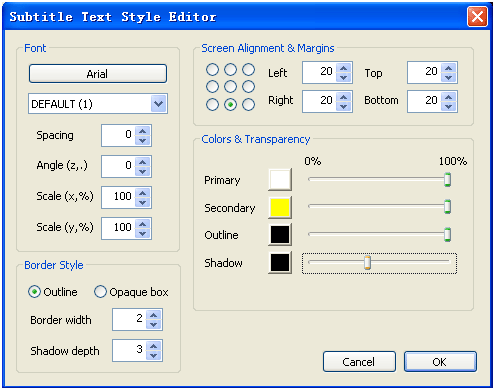
As can be seen from the picture, the Subtitle Text Style Editor allows you define the position, the color, font,etc. of the subtitle.
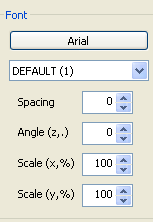
Font Section: Define the font, code page and character spacing, subtitle line angle, etc.
Position Section: Define the position of the subtitle.

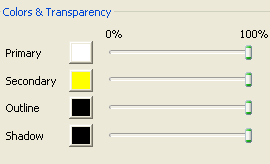
Colors & Transparency Section: Define the subtitle text color,outline and shadow color and their transparency.
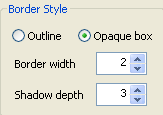
Border Style
Section: Define the subtitle text border or the subtitle
background border.
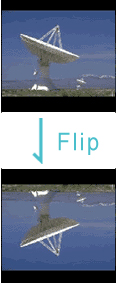
Q: How to vertically flip video?
A: Check the Flip video option.

Boilsoft Video Converter will flip video image vertically.